
Why Your Leaked Content Still Shows on Google After a DMCA (And How to Fix It)
Filed a DMCA but your content still shows on Google? Use Google's Outdated Content Removal tool to force an update within 24 hours. Step-by-step guide.

You filed a DMCA. The website removed your content. Victory, right?
Then you Google yourself… and there it is. Your leaked content, still showing up in search results. The thumbnail. The snippet. The cached version. All still visible to anyone who searches for you.
Here’s the thing: Google doesn’t update instantly. Even after content is removed from a website, Google’s cached version can linger in search results for weeks: sometimes months.
But there’s a fix. Google’s Refresh Outdated Content tool forces an update within 24 hours. Here’s exactly how to use it.
When to Use This Tool
Use this tool when:
- ✅ Content has been removed from the source website (DMCA processed)
- ✅ The page still appears in Google search results
- ✅ You don’t own the website (this is for third-party sites)
- ✅ You want to speed up Google’s update (instead of waiting weeks)
Do NOT use this tool if:
- ❌ The content is still live on the website (your DMCA hasn’t been processed yet)
- ❌ You want to remove content that still exists (use a DMCA instead)
- ❌ You own the website (use Google Search Console’s Removals tool)
Before You Start
You’ll need:
- A Google account (free, required to prevent abuse)
- The URL of the page or image you want removed from search results
- Confirmation that the content is actually removed from the source site
Step 1: Verify the Content Is Actually Removed
Before submitting a request, visit the original URL and confirm:
- The page returns a 404 error, OR
- The specific content (your images/videos) has been removed from the page
If the content is still there, your request will be denied. Wait until your DMCA is processed first.
Step 2: Go to the Outdated Content Tool
Open Google’s Refresh Outdated Content tool:
→ search.google.com/search-console/remove-outdated-content
Sign in with your Google account and click the “New request” button.
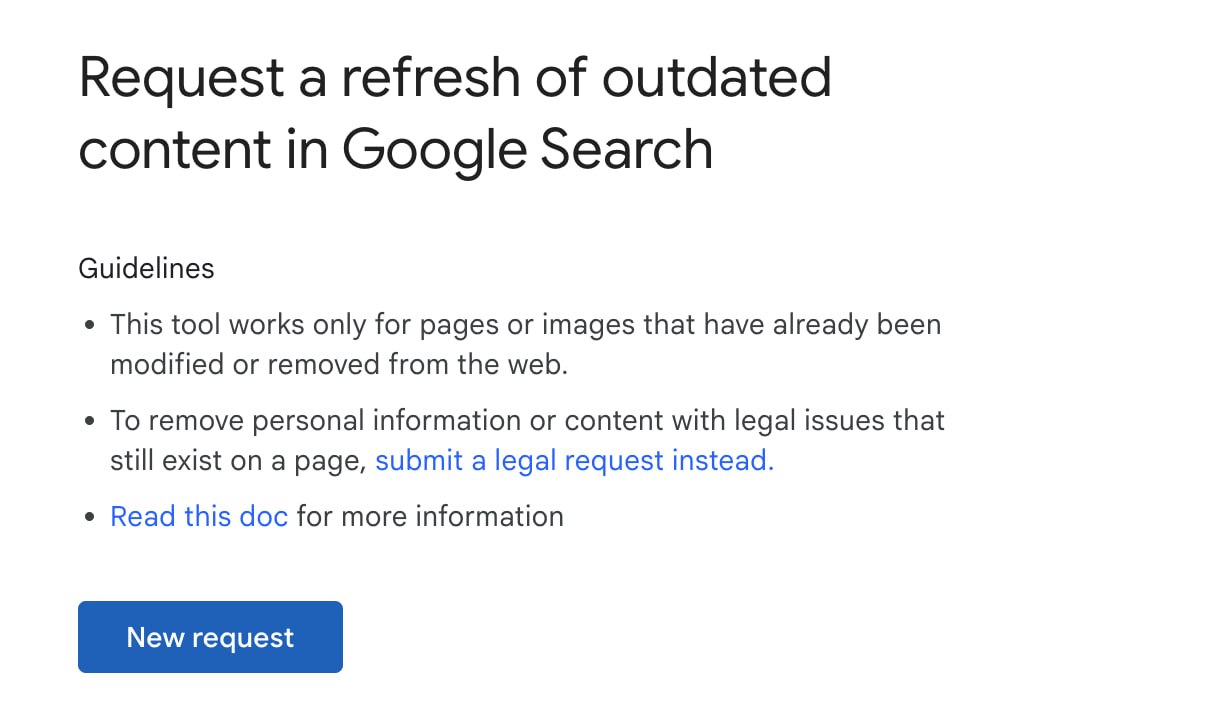
Step 3: Select Your Reason
After clicking “New request,” you’ll see three options. Select the first one:
“To refresh Google’s outdated result for a webpage that has changed”
This is the correct option for content that’s been removed via DMCA but still shows in Google’s search results.
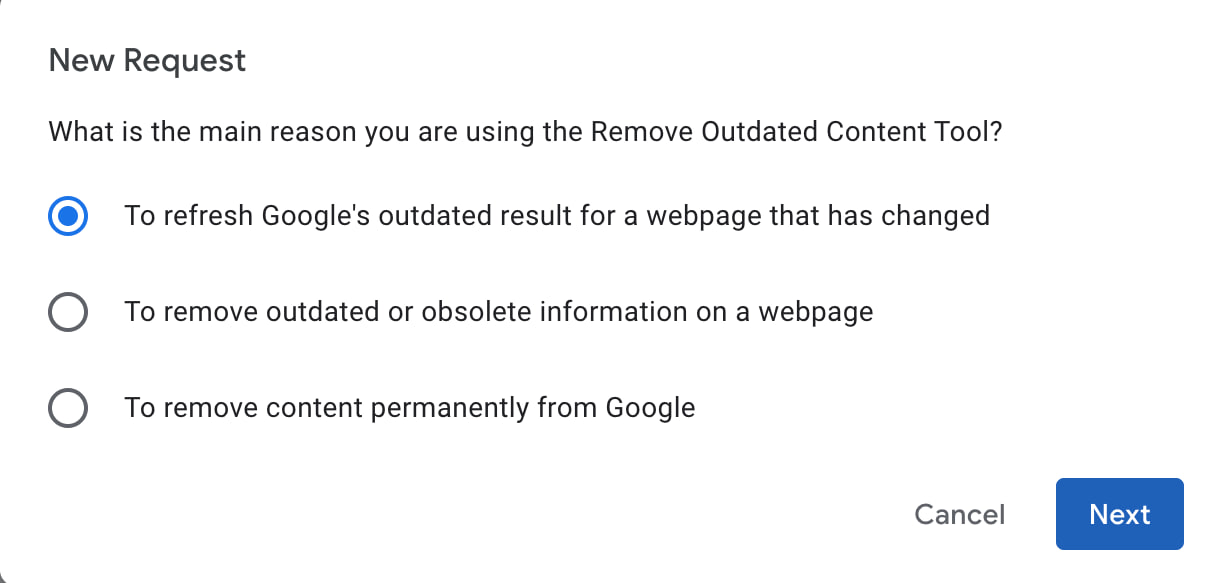
Click Next to continue.
Step 4: Enter the URL (For Webpages)
You’ll see two tabs at the top: Page and Image.
For removing a webpage from search results, stay on the Page tab and paste the URL of the page you want removed.
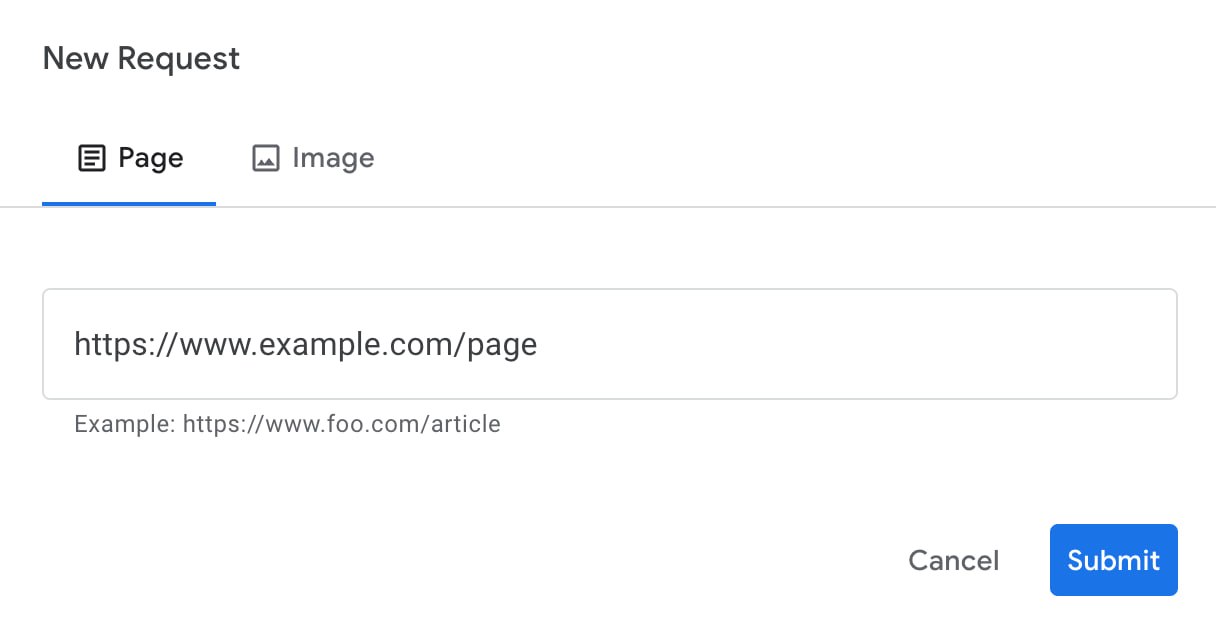
Click Submit to send your request.
Tip: Copy the URL directly from Google’s search results by right-clicking the link and selecting “Copy link address”: don’t copy it from your browser’s address bar after clicking.
Step 5: Check Your Request Status
After submitting, your request appears in the queue on the tool’s homepage. Check back to monitor the status.
Status meanings:
- Pending: Request is being processed (usually 24 hours)
- Approved: Content removed from Google search results
- Denied: Content still exists at URL (see below)
- Expired: Request expired after 180 days
- Cancelled: You or the site owner cancelled the request
Removing Images from Google Search
For images showing up in Google Images, the process is slightly different.
Step 1: Find the Image in Google Images
Search for the image at images.google.com and locate the result you want removed.
Step 2: Copy the Image Link
- Click on the image to open the preview
- Right-click on the expanded image
- Select “Copy link address”
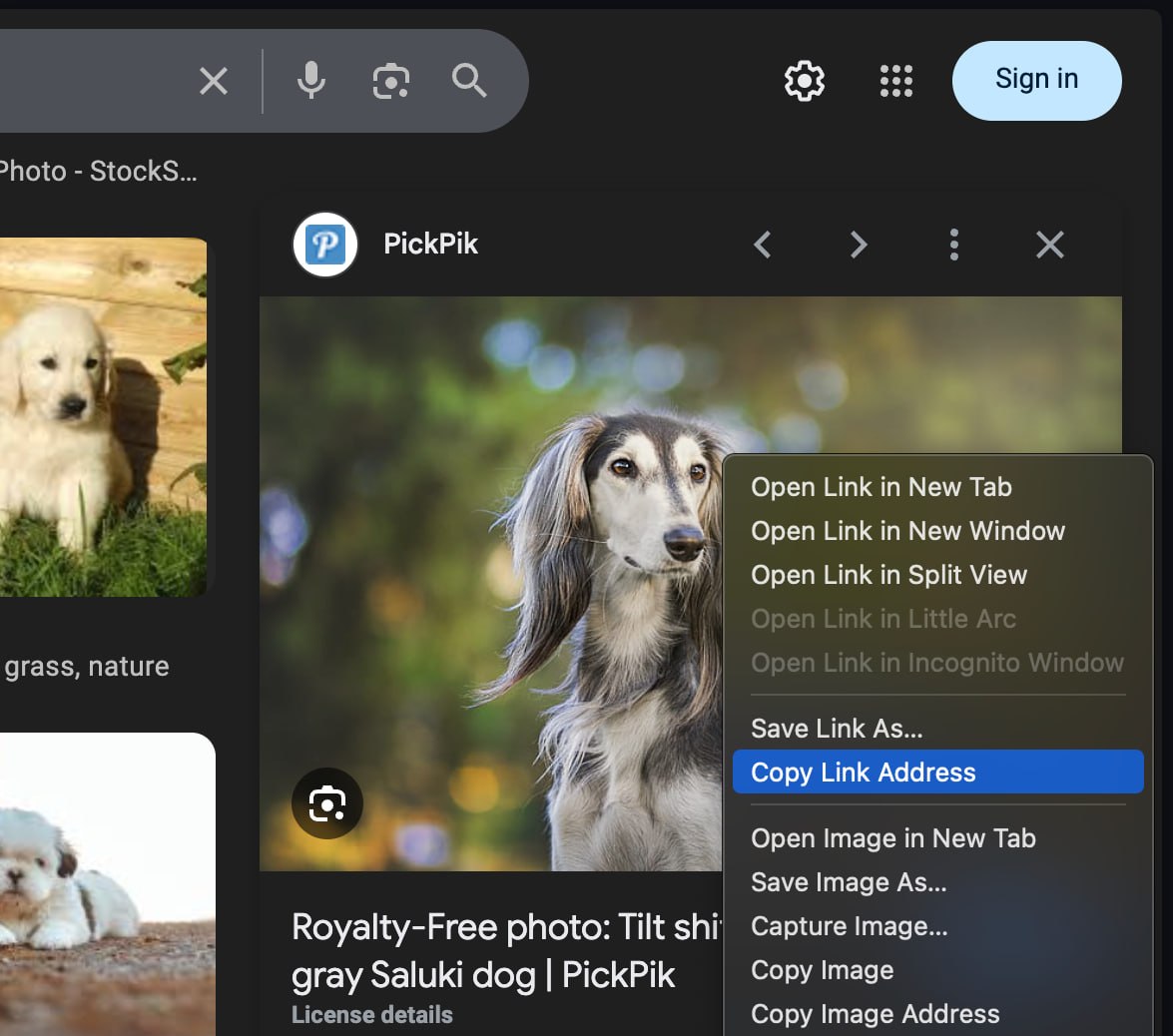
The URL should start with https://www.google.com/imgres?imgurl=...
Step 3: Submit the Image Request
- Go back to the Outdated Content Tool
- Click New request and select the refresh option
- Click the Image tab
- Select “Enter ‘Copy link address’ URL from Image Search results”
- Paste the URL you copied
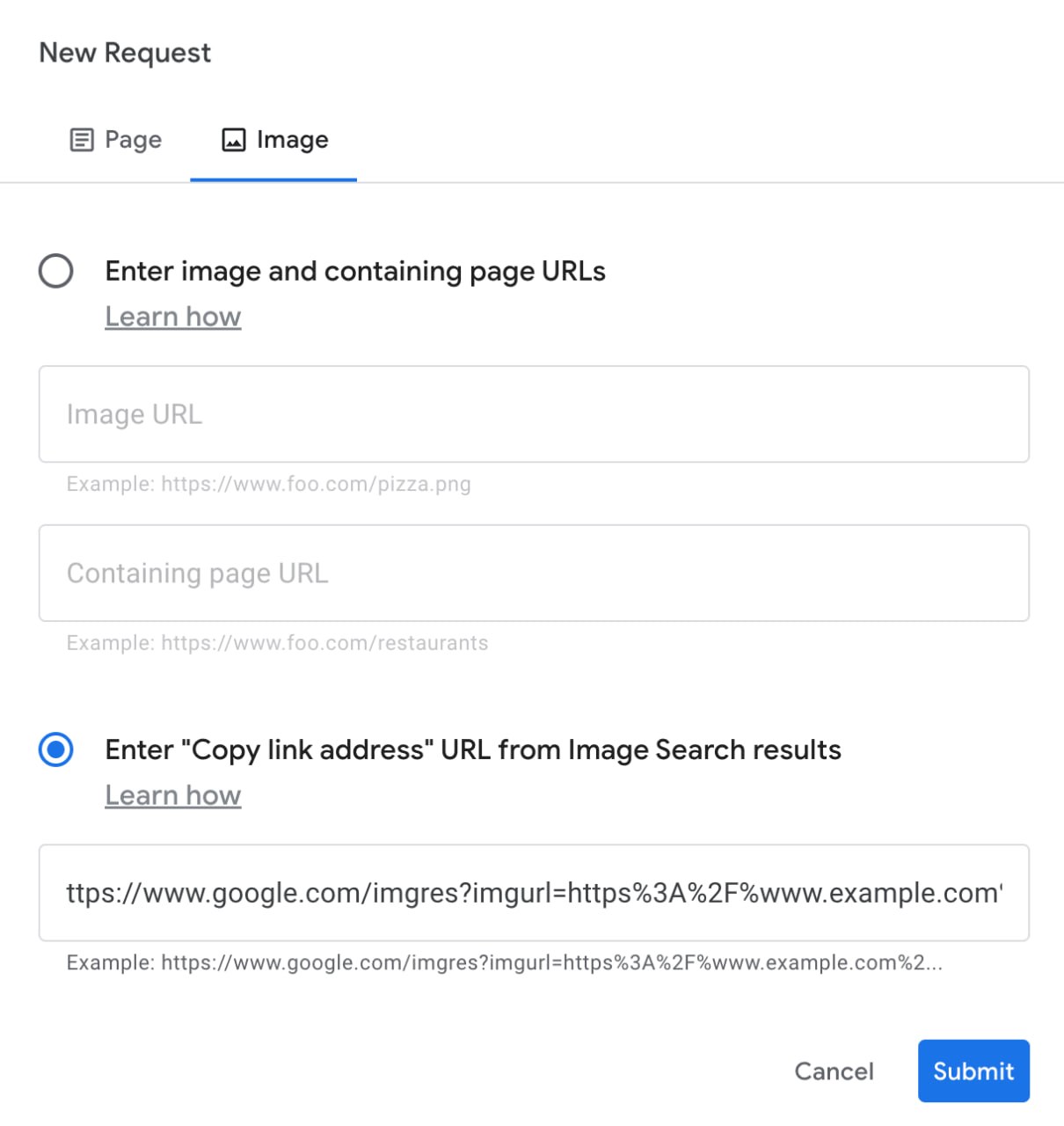
Click Submit to send your request.
Note: If the same image appears on multiple pages in Google’s results, you’ll need to submit a separate request for each one.
What If Your Request Is Denied?
Common reasons for denial:
- Content still exists: Wait for your DMCA to be processed, then resubmit
- Wrong URL format: Copy the URL directly from Google search results
- Page hasn’t changed significantly: Make sure the content is actually removed from the page
Pro Tips for Faster Results
-
Check for URL variations. The same page might exist at:
http://andhttps://www.and non-www- With and without trailing slash
Submit a request for each variation that appears in Google.
-
Screenshot everything. Take screenshots of the Google search results before submitting, in case you need to reference them later.
-
Don’t wait for natural updates. Google can take weeks to recrawl and update. This tool forces an update within 24 hours.
-
Works for snippets too. Even if the page still exists, you can request to remove outdated snippets that show sensitive information that’s been deleted.
Timeline: What to Expect
- Submit request: Instant
- Processing: 24 hours (sometimes a few days)
- Result removed from Google: Immediately after approval
- Permanent?: Yes, unless content reappears at URL
When DIY Isn’t Enough
This tool works great for one or two URLs. But if your content is appearing across dozens of sites: and you’re spending hours filing DMCAs and then following up with Google removal requests: it becomes a full-time job.
That’s where automated monitoring saves you. Instead of manually searching for leaks and filing removals one by one, you can have everything detected and removed automatically.
Tired of playing whack-a-mole? Get a free content scan to see everywhere your content appears and how fast we can remove it.
Frequently Asked Questions
How long does the Google Outdated Content Removal tool take?
Most requests are processed within 24 hours. Some may take a few days depending on volume. You can check the status of your request in the tool's queue.
Will this permanently remove my content from Google?
Yes, as long as the content is removed from the source website. If the content reappears at the original URL, Google will re-index it and it may show up in search results again.
Can I use this tool if I don't own the website?
Yes! This tool is specifically designed for removing outdated content from sites you don't control. If you own the site, use Google Search Console's Removals tool instead.
What if the same content appears on multiple URLs?
You'll need to submit a separate request for each URL. The same content often appears at different URLs (with or without www, http vs https, etc.), so check for variations.
Why was my outdated content removal request denied?
The most common reason is that the content still exists at the URL. Google checks if the page has actually changed or been removed. If your DMCA hasn't been processed yet, wait until the content is actually down before submitting.